
A desktop gaming PC does not use an SD or microSD card as its RAM or primary game drive; it uses RAM and a storage drive. That distinction matters when you shop: the wrong type of memory will not solve a slow computer or add the storage your game library needs.
This guide separates desktop PC storage from removable-card use in compatible handhelds and card readers. You will see where a removable card fits, what its speed markings mean, and how to avoid buying a card that your device cannot use.
Key Takeaways
- A desktop gaming PC uses RAM and an SSD, not an SD card, for its core memory and game storage.
- An NVMe SSD is a solid-state drive that uses the NVMe protocol over PCIe, commonly installed in an M.2 slot.
- A compatible card reader lets a computer access a removable SD or microSD card.
- Card speed markings describe different things, including sustained writes, interface, and application performance.
- A handheld can use a card for expansion when its slot and supported card standard match.
- Identify the device and its storage slot before comparing removable cards.
What Storage Does a Gaming PC Actually Need?
For a desktop gaming PC, RAM holds active working data while an SSD holds installed games. Both affect how you use the computer, but they solve different storage needs.
RAM supports tasks the computer is handling now; the SSD keeps games and files when the PC is off. Adding more RAM does not create room for another game installation, and a larger SSD does not give the PC more active working memory.
Keep RAM and drive capacity on separate upgrade lists because one cannot substitute for the other.
RAM Holds Active Game Data
When a game runs, RAM holds data the computer is actively using. The processor can work with that active data while the game is open. If you run several programs alongside a game, they also use RAM.
RAM capacity and memory-card capacity are not interchangeable. A removable card cannot serve as the desktop’s active working memory, even if its storage number looks large. For a PC upgrade, compare the RAM type and capacity supported by the motherboard.
SSDs Store Installed Games
An SSD stores installed games, apps, and other files between sessions. A familiar SATA SSD connects through a SATA interface, while an NVMe M.2 SSD uses the NVMe protocol over PCIe and commonly fits an M.2 slot.
NVMe drives are a common choice for gaming PCs, but the computer must support the drive’s connection and size. Check the motherboard before choosing a replacement or adding storage. An SD or microSD card does not replace either kind of SSD as the PC’s main game drive.
Can You Use a Memory Card for PC Gaming?
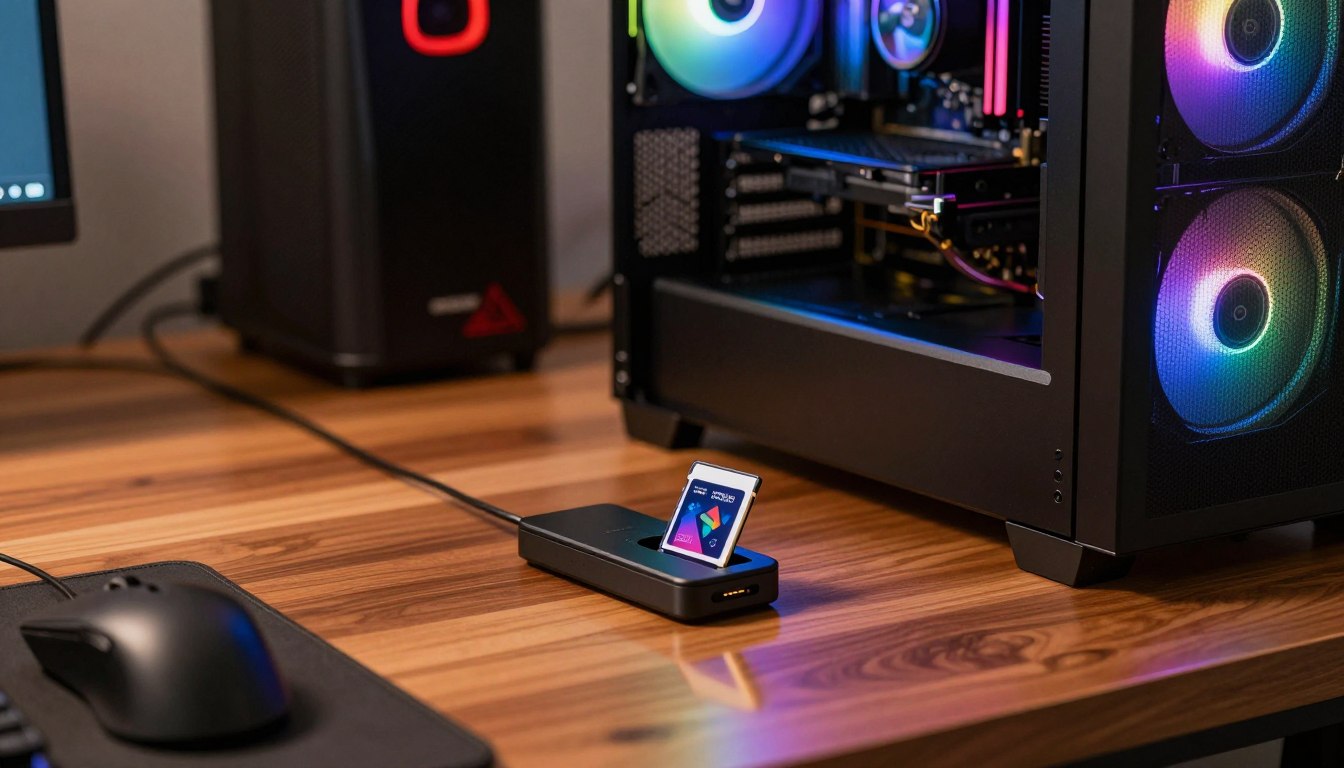
A PC can read a removable card through a compatible reader, but that only makes the card accessible, not equivalent to an SSD. Accessible means Windows can work with its files; it does not guarantee a smooth game experience.
An SD card can be accessed by a PC, but that does not make it a good primary game drive. Windows PCs can read SD and microSD cards with a compatible reader. Steam game files can also be stored on a drive the PC can access.
Installing or Launching Games
You may be able to install or launch a game from a removable card, depending on the reader, card, and game workflow. The result can vary between devices. A card used for occasional file access is not the same as a drive intended for regular game loading.
For many PC games, the computer requests a mix of data while the game runs. A removable setup adds the reader and its connection to that path. A slow reader or an unplugged card can interrupt access, so consider how often you need the files before relying on this arrangement.
Moving Files and Backups
A card reader can be handy for moving data between a desktop and a device that accepts removable storage. It can also keep a temporary copy of files. Three practical uses include:
- Transferring game files between compatible devices.
- Moving saved files or other personal data.
- Keeping an extra copy of files for transfer or safekeeping.
Those jobs suit removable storage better than repeated play from a card. Keep frequently played PC games on an internal SSD rather than relying on a removable card.
What Is the Best Memory Card for Gaming PC?
For a desktop gaming PC, the best memory card is no memory card at all: use an SSD for installed games. For PC game storage, an SSD is the practical choice because it is designed to serve as a computer’s drive.
Choose storage by the device and task, not by the word “memory” on the package. A SanDisk Extreme product is a removable-card family, not a type of PC RAM. Its price varies with capacity, interface, and performance class, so compare similar configurations rather than relying on headline speed alone.
Use this quick decision list to avoid buying storage for the wrong slot:
- Desktop game installs: choose an SSD that fits the PC.
- Compatible handheld expansion: choose a microSD card the device supports.
- Removable file transfers: pair the card with a compatible reader.
A card can still be useful when you move files or expand a handheld’s storage. The right choice depends on the device taking the card, not on whether the card has a gaming-themed label. Card size, interface, and supported performance can all affect its price.
Check whether the intended device has an SD slot, a microSD slot, or neither before spending money.
Which Memory Card Speed Ratings Matter for Games?
A card’s speed-class mark tells you its guaranteed minimum sustained sequential-write speed. The class helps you check whether a card meets a host’s stated write requirement.
Speed class measures a minimum write rate, not game load time. U1 and V10 guarantee 10 MB/s; U3 and V30 guarantee 30 MB/s. V60 guarantees 60 MB/s, and V90 guarantees 90 MB/s.
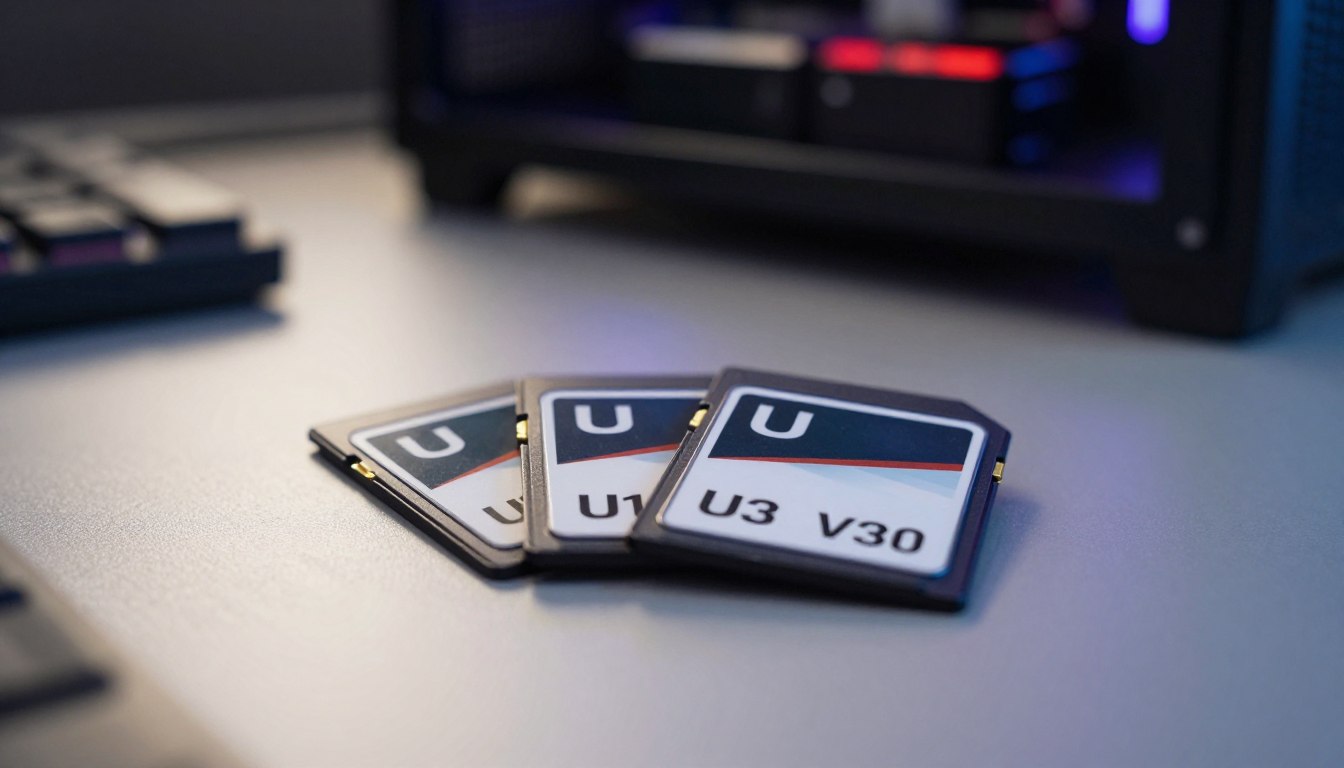
The markings combine different class labels. U1 and U3 apply to UHS bus products. V60 and V90 apply to UHS-II or UHS-III bus products. A device that requires a class can use a card with the same or higher class, such as a U1 host with a U1 or U3 card.
| Rating | Minimum sustained write | Applicable bus products |
|---|---|---|
| U1/V10 | 10 MB/s | UHS products |
| U3/V30 | 30 MB/s | UHS products |
| V60 | 60 MB/s | UHS-II or UHS-III |
| V90 | 90 MB/s | UHS-II or UHS-III |
U1, U3, and V Ratings
These marks describe a card’s minimum sustained sequential write speed, not its advertised read speed or every kind of file access. U1 and V10 ratings set a 10 MB/s minimum, while U3 and V30 set 30 MB/s.
That difference matters when a device records a continuous stream of data. It does not say how quickly a game will load separate assets, or how fast a computer can read the card through a particular reader.
Choosing a Card for 4K Video
The best SD card for 4K video is one that meets the camera’s specified speed class. U3 or V30 is common for high-bitrate recording, but the camera’s stated requirement takes priority. A camera may need a higher class for a particular recording mode.
Check the device’s exact class requirement before choosing a card. Match the card’s minimum class to the host’s stated requirement, then consider other ratings separately.
Does UHS-I or UHS-II Make Games Load Faster?
UHS-II offers a higher transfer ceiling than UHS-I, but only a matching host can take advantage of it. The host matters because a reader or device sets which interface the card can use.
UHS-I tops out at 104 MB/s, while UHS-II has a maximum transfer rate of 312 MB/s. Those are interface ceilings, not a promise of game load speed. A game’s load time does not depend on the theoretical ceiling alone.
UHS-I and UHS-II identify the UHS bus interface, not the minimum sequential-write class. The practical outcomes are straightforward:
- A UHS-II card in a UHS-I host runs at UHS-I speeds.
- A UHS-I card with a UHS-I host uses UHS-I.
- A compatible UHS-II card and host can use the higher interface ceiling.
So, UHS-II cards can speed up transfers when both ends support the interface. For a handheld, support in the device matters as much as the label printed on the card. A UHS-II memory card cannot make an older UHS-I reader operate at UHS-II speed.
Product names can also confuse the issue. SanDisk Extreme Pro UHS-I is a UHS-I product, despite “Pro” in its name. SanDisk Extreme and SanDisk Extreme Pro labels do not by themselves identify the bus interface.
Check the card reader as well as the gaming device before paying for UHS-II.
Do A1 and A2 Ratings Help With Game Loading?
A1 and A2 are the card ratings to compare when random application access matters. Random access means reading or writing small pieces of data in different places, rather than handling one long file.
A2 performance requires both an A2-rated card and an A2-supported host. A higher mark on the card alone cannot make a device support the same level of application performance.
What A1 and A2 Guarantee
A1 guarantees at least 1,500 random-read IOPS and 500 random-write IOPS. A2 guarantees at least 4,000 random-read IOPS and 2,000 random-write IOPS. IOPS means input/output operations per second.
A1 and A2 application ratings describe minimum random-read and random-write performance for applications, not video recording. Random reads can matter when a device fetches many small pieces of game data. Video ratings instead focus on sustained recording.
Why the Host Must Support A2
An A2 card paired with an A2 host can provide A2 performance. If the card and host have mixed A1 and A2 ratings, the combination provides at least A1 performance. That host condition is easy to miss when comparing microSD cards by label alone.
A microSD card with an A2 mark may still be a sensible option, but the device’s support determines whether the A2 feature is usable. The card’s random performance is only one part of how a game behaves, alongside the device and its software.
Confirm A2 support in the device before paying extra for an A2-rated card.
How Much Card Storage Do Games Need?
Choose card capacity by the size of the library you actually plan to keep installed. For a modest retro collection, 128GB can hold dozens to hundreds of games, depending on their file sizes.
Larger game images reduce the number of titles that fit. A broad library that includes Wii games may call for 512GB to 1TB, while smaller collections can use less.
Use the library scope as a starting point, then allow room for the files and artwork you plan to add:
| Library scope | Practical card capacity |
|---|---|
| 8-bit/16-bit systems | 32GB |
| Through PS1 | 64GB |
| Through PSP/N64/Dreamcast | 128GB |
| Including PS2/GameCube | 256GB minimum or 512GB for more room |
| Broad retro library through Wii | 512GB-1TB |
The card standard also sets a capacity range. SDHC covers capacity over 2GB through 32GB. SDXC covers over 32GB through 2TB. SDUC covers over 2TB through 128TB.
A newer-standard-compatible device supports older card standards, but an older-standard device does not support newer standards. So, a device that accepts SDHC may not accept an SDXC or SDUC card. Check its supported standard before settling on a size.
Leave room for game files and artwork rather than filling the card to its final gigabyte.
How Do Real-World Card Speeds Compare?
A card can post a strong sequential result and still behave differently when a game requests many small files. Sequential speed describes reading or writing data in order, such as one large file.
Random reads can influence handheld-console load times, so sequential figures alone cannot identify the fastest microSD card for gaming. Device support and random-read behavior matter too.
Sequential Reads and Writes
In 2026, 41 microSD cards were tested for sequential read and write speeds. A Lexar Silver Plus microSD card recorded 177 MB/s read and 151 MB/s write over UHS-I.
Those measurements describe that card under a test setup, not a universal record or a result every host will reproduce. The card reader, computer, and USB cable can all change transfer-test results. A different reader may also limit the connection.
Random Reads in Games
Random access measures how a card handles small requests scattered across its data. That can be closer to a handheld game’s activity than copying a single large file. The 41-card test measured random read and write separately on a Retroid Pocket 5 running Android 13.
The fastest microSD card for gaming cannot be picked from sequential speeds alone. A handheld may use a card differently from a computer, and its support can limit what the card delivers. Treat a benchmark as a comparison under its test setup, not a promise of the same speed in every device.
Which Cards Are Worth Considering for Removable Gaming Storage?
For removable gaming storage, choose by device fit first and measured performance second. Form factor comes first: full-size SD and microSD cards fit different slots.
None of these cards is a desktop game drive. The measurements below compare tested samples, so they can help distinguish transfer performance among removable options.
| Model | Interface and form factor | Measured large-file write | Measured small-file write | Measured average read |
|---|---|---|---|---|
| Lexar Professional 2000x, 32GB tested | UHS-II SD | 234 MB/s | 54 MB/s | 144 MB/s |
| Transcend UHS-II, 32GB tested | UHS-II SD | 224 MB/s | 53 MB/s | 157 MB/s |
| SanDisk Extreme Pro UHS-I, 32GB tested | UHS-I SD | 106 MB/s | 28 MB/s | 114 MB/s |
| Kingston 128GB Canvas Go Plus, 128GB tested | UHS-I microSDXC | 101 MB/s | 30 MB/s | 107 MB/s |
The Lexar Professional 2000x and Transcend UHS-II suit high-speed file transfers when the reader supports UHS-II. The Lexar model is available from 32GB to 256GB; the Transcend option comes in 32GB to 64GB.
The SanDisk Extreme Pro is a full-size UHS-I option, available from 32GB to 512GB. The Kingston Canvas Go Plus microSD is the form-factor choice for a compatible handheld and is available from 32GB to 512GB.
The best SD card for gaming depends on whether the device takes full-size SD or microSD. Compare current prices only between cards of the same capacity and interface.
How Do You Check Card and Device Compatibility?
The device’s slot and supported card standard decide whether a card will work at all. Start with the slot, then confirm the reader, capacity, and file-system needs.
A microSD card can fit an SD slot through an adapter, but a full-size SD card cannot fit a microSD slot. The adapter works in one direction only.
Use this four-item check before buying or formatting:
- Confirm whether the device accepts SD or microSD.
- Confirm its supported card standard and maximum capacity.
- Check whether the card reader supports the chosen bus.
- Follow the device’s file-system instructions.
File-system choice can affect the files a card can hold. FAT32 has an approximately 4GB file-size limit. exFAT supports larger files, so it is needed for individual files over 4GB.
SD Express is a format-specific case, not a general replacement for older microSD cards. It exists as microSD Express and is used by Nintendo Switch 2. A card that suits that device may not be the right choice for an older handheld.
Check the device manual for its exact format and capacity limits before formatting the card.
How Can You Avoid Fake or Incompatible Cards?
A low price cannot prove that a card’s advertised capacity is real. Counterfeit cards can misreport storage space or fail during writes, putting game files at risk.
Verify a new card’s full capacity before trusting it with saved games. A full-capacity write-and-read check takes about 20-40 minutes for a 256GB card.
Verify a new card before trusting it with the only copy of saved games.
Use these steps to reduce the chance of a capacity surprise:
- Buy from a reputable, verifiable retailer.
- Inspect the exact model and capacity marking.
- Run a full-capacity write-and-read verification with H2testw on Windows or F3 on Mac or Linux.
- Back up important saves separately.
SanDisk, Samsung, Kingston, Lexar, and PNY are established options. No logo removes the need to match the card to the host. SanDisk Extreme Pro and other familiar product names still need a genuine model and a compatible device.
No single brand wins across every device and workload. When you compare price, check the exact card type and capacity rather than assuming a familiar name guarantees a fit.
Conclusion
For desktop gaming, put the game library on an SSD and treat a memory card as removable storage only. A compatible SD or microSD card can expand a handheld, but it does not take the place of the PC’s installed-game drive.
For the desktop, an NVMe M.2 SSD may suit a motherboard with an available compatible slot. A SATA SSD can be another option when the PC supports that connection. The best fit depends on the computer’s hardware and the storage you need.
Check the gaming PC’s motherboard and available drive bays, then choose a compatible SSD before buying a card for game storage.
FAQ
How many games can a 128GB SD card hold?
A 128GB SD card can hold dozens to hundreds of small retro games, depending on their file sizes. There is no fixed game count because a small 8-bit game uses far less space than a larger game image. Leave room for artwork and other files too, since those take space away from the games themselves.
Are SD cards good for gaming?
SD cards can be useful for gaming on a handheld that supports the card, but an SSD is the practical choice for desktop PC game storage. A compatible card can expand a handheld’s available space or move files between devices. Its usefulness depends on the device’s slot, supported card standard, and reader.
Which brand of SD card is the best?
No single SD card brand is best for every device and workload. SanDisk, Samsung, Kingston, Lexar, and PNY are familiar established options, but the exact card still needs to match the host. Check its form factor, supported standard, and capacity, then choose a genuine model suited to how you will use it.
What are the top 5 SD card brands?
Five familiar SD card brands are SanDisk, Samsung, Kingston, Lexar, and PNY. That list is not a ranking, and no brand works best in every host. Compare the exact model and card standard against your device’s requirements. For gaming, the slot type and supported capacity matter as much as the logo on the card.
Does it matter what brand of SD card you buy?
Brand can help you identify established products and support, but it does not guarantee that a card will work in every device. Check the exact card standard, capacity, and form factor against the host. A genuine card from a known brand can still be incompatible if it does not match the device’s slot or supported standard.
If you want to dig further into what does consolidation mean in cryptocurrenc, read our What Does Consolidation Mean in Cryptocurrenc guide.
If you want to dig further into how to convert cryptocurrency to cash, read our How to Convert Cryptocurrency to Cash guide.
If you want to dig further into impact of technology on privacy and security, read our Impact of Technology on Privacy and Security guide.


 By
By